
POS / Restaurant orders
Choose dishes, quantities and kitchen notes
Find menu items, check quantities, record preparation notes and distinguish line notes from takeaway packing and price changes.
Use the restaurant menu to build the guest’s order, then review each dish before saving or sending changes to the kitchen. This guide describes the counter workflow; the waiter app can present the same concepts in a smaller layout. Available controls depend on the current order and your permissions.
Find the right dish
Open the correct table or takeaway order first. Use Search dishes to find an item by its displayed name. Browse the available categories when the guest is still choosing, and use Veg only when that filter is offered. Confirm the actual dish and portion rather than selecting a similarly named item just because its photo looks familiar.
Product photos, dietary marks and spice indicators help identify the menu. They do not establish an allergen guarantee. Ask the kitchen to confirm any allergy or special dietary requirement before promising a dish to a guest.
Check the order line
- Add the requested dish to the current order.
- Review its name, quantity and displayed line amount. Check whether an existing line already contains the dish before adding another.
- Use the line’s plus/minus controls or other offered quantity action to correct the quantity. Recheck the total after a change.
- Keep any kitchen or service status in view. A change to a dish already sent to the kitchen needs the appropriate saved change and staff communication; it should not be treated as a fresh unrelated order.
Record preparation notes
Use the note control beside the intended dish, enter a short instruction and check that the note appears under the correct line. A useful example is “Less oil, no chilli, less salt.” Include only the actual guest request; do not copy a previous table’s instructions.
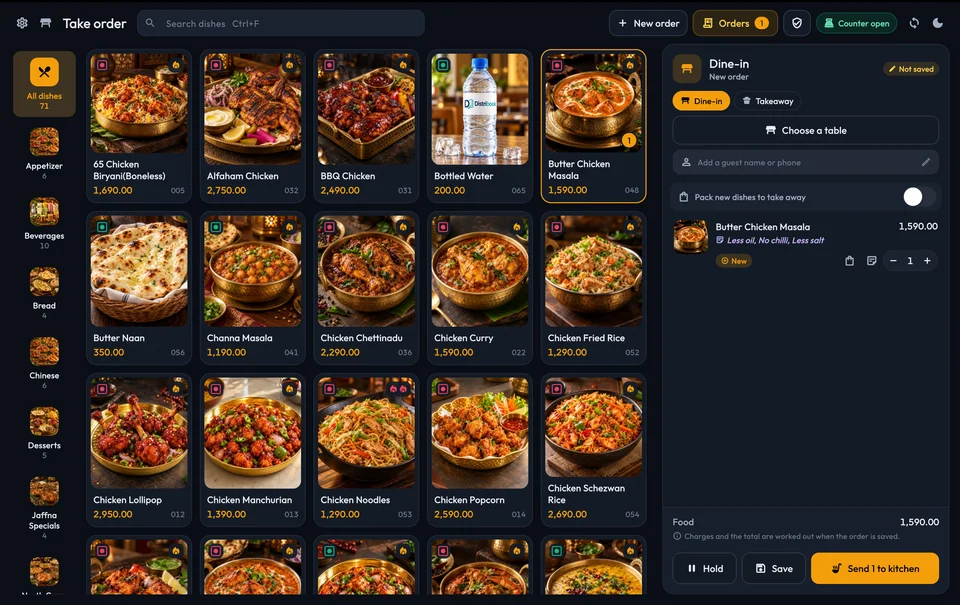
A dish note is different from an order-level guest note and from a packing choice. Where Pack new dishes to take away or a packed-to-take-away indicator is shown, review it separately. Do not assume a preparation note changes the order type, price or packing status.
Menu prices and discounts
Menu setup and selling-price changes belong to an authorised product or pricing workflow. The available order types can have different configured prices. If a price looks wrong, confirm the selected order type and ask an authorised manager to check the menu setup rather than using a discount as an unexplained price correction.
If a permitted discount control is used, review the affected dish or bill, its resulting total and any reason requested. A large discount may require approval. An approval request is not evidence that the adjustment has already been accepted.
Save the intended change once
Review the table, lines, quantities, notes and total, then use the saved-order or kitchen action offered on screen. Wait for confirmation. If the connection fails, reopen the existing order and inspect its latest contents before adding the same dish or sending the same change again. A refresh can reveal another staff member’s change; review that state before continuing.
Continue with table orders and kitchen handoff. For the connected product experience, see Distribook Restaurant.