
POS / Restaurant orders
Work together: counter, waiter and owner apps
Understand restaurant handoffs between the counter POS, waiter app and owner/admin app without confusing order, kitchen or payment status.
Distribook Restaurant brings together the counter POS, the waiter app and the owner/admin app. They support different parts of service. The screen a person can open and the actions they can perform still depend on their account, assigned workspace and restaurant settings.
A shared workflow does not mean every user is a cashier or manager. Use the correct account and confirm the branch before working on a table. Ask an authorised manager to resolve missing access rather than sharing another person’s sign-in.
Waiter: manage work on the floor
The waiter home can show the current floor, occupied tables, dishes ready to serve and quick actions such as Table order, Takeaway, My orders and Ready to serve. Check the table reference before opening an order, especially when two tables have similar dishes or guests are moving seats.
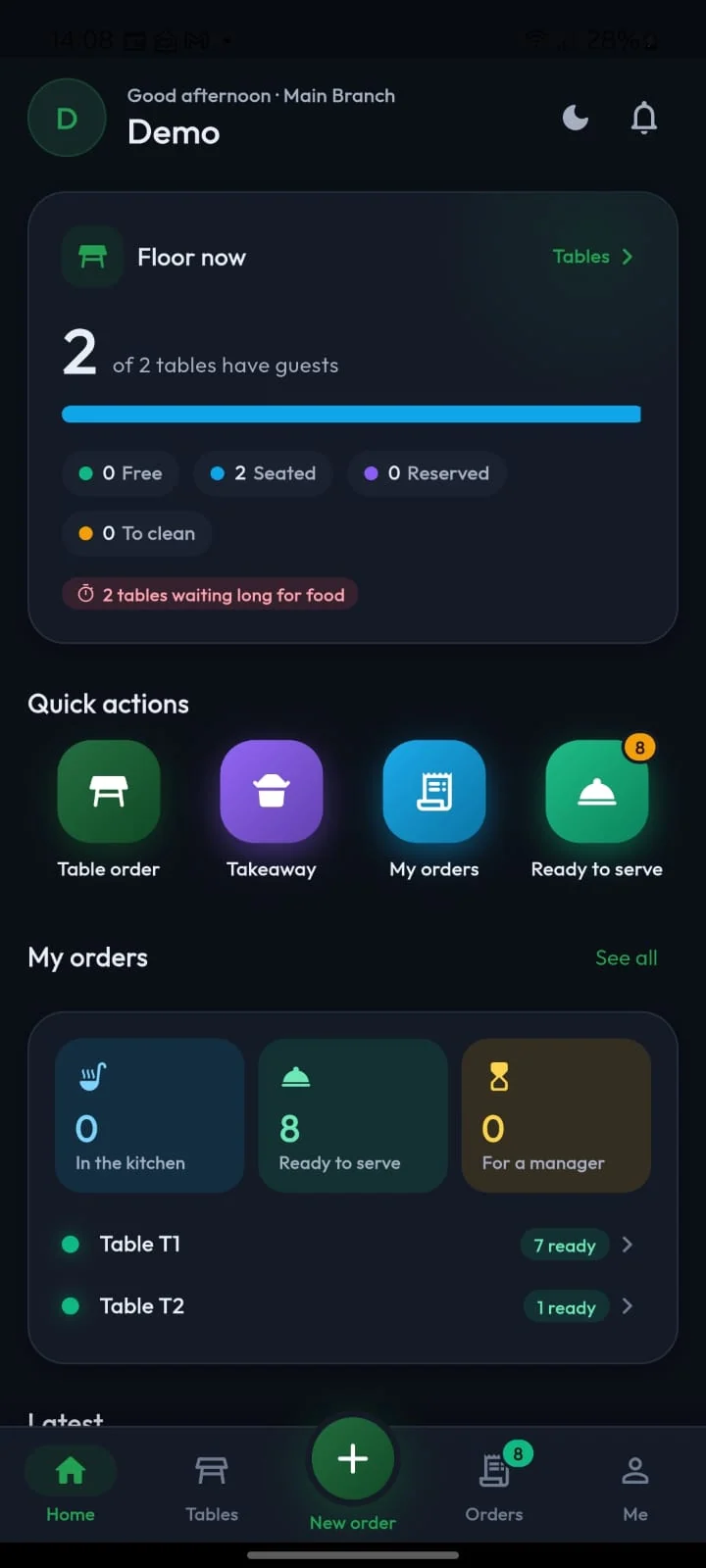
- Open the intended table or start the correct order type.
- Add dishes, quantities and preparation notes, then review before saving or sending changes.
- Follow the order’s kitchen and service indicators. A ready dish still needs to reach the right table.
- Record served progress only through the available workflow after the physical service action has happened.
Do not send the same kitchen changes again merely because the floor is busy or an update appears late. Refresh and inspect the existing order first.
Counter: review the bill and collect money
The cashier reviews the latest order, charges and any adjustments, then uses the permitted billing and payment actions. The cashier’s open counter and payment permissions remain separate from waiter ordering. Direct the guest to the authorised cashier when the phone cannot settle the bill.
Order notes and kitchen status do not confirm payment. Similarly, a Paid bill does not prove every dish has been served. Keep preparation, service and money checks separate when coordinating the handoff.
Owner or manager: review the day
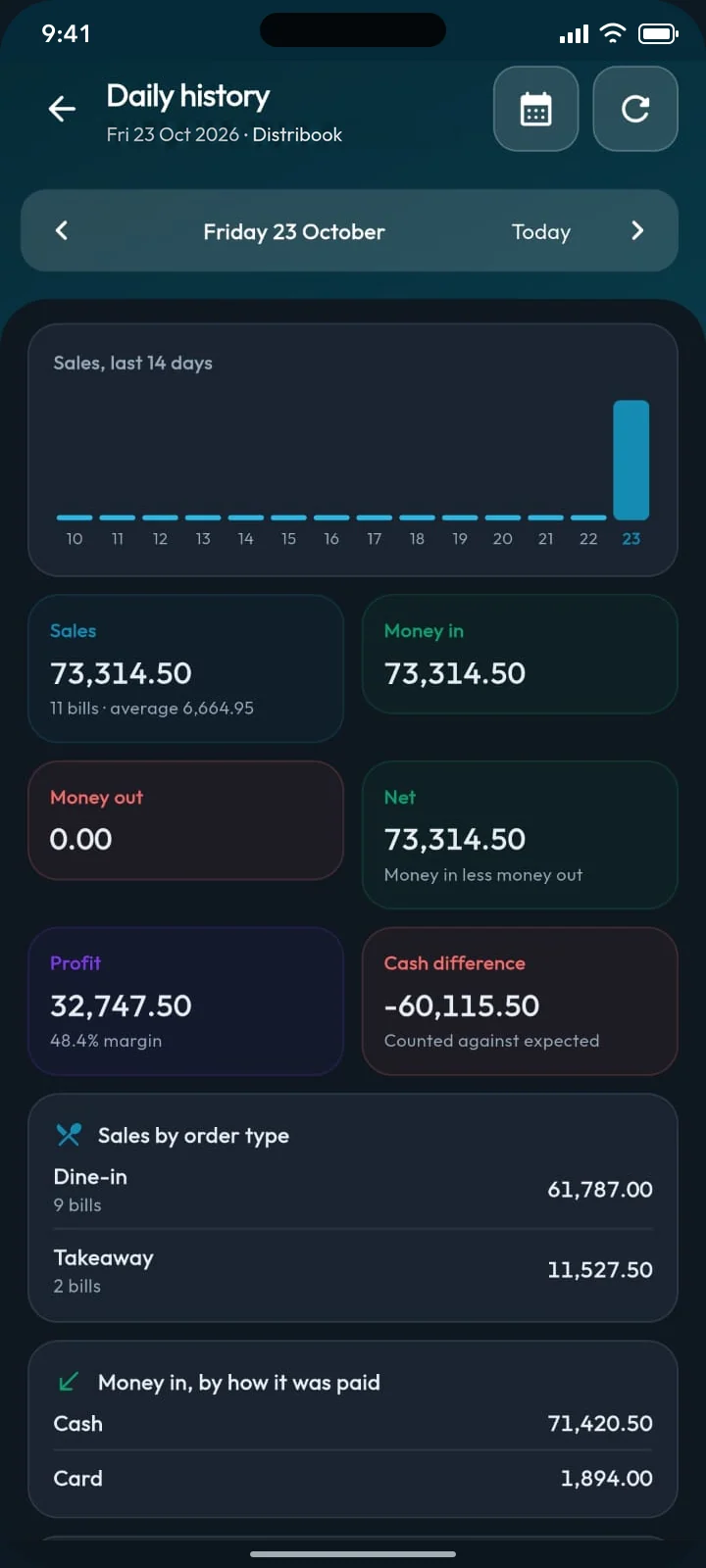
The admin-mobile dashboard can provide shortcuts to table orders, daily history, approvals, staff and reports according to access. Confirm the selected date, branch and order filters before drawing conclusions from a total or an empty list.
Open an approval request and read its actual reason and current status before accepting or refusing it. The presence of a request is not confirmation that an order was cancelled or a discount was applied. Staff should check the resulting order state before continuing service.
Handoffs when information is delayed
When another operator changes an order, refresh and review that change instead of overwriting assumptions from an older view. After a connection failure, inspect the existing order, kitchen tickets or bill before repeating a submission. Escalate an uncertain payment to the cashier or manager and communicate the table/order reference clearly.
For detailed procedures, use restaurant orders, kitchen tickets and restaurant payments. See the connected product overview for how the three applications fit together.