
POS / Restaurant orders
Restaurant tables and takeaway orders
Open the correct table or takeaway order, review dishes and kitchen changes, then bill, collect payment or request cancellation safely.
Choose the table or order type
Open Restaurant or Take order, as offered by your workspace. Restaurant access, table ordering, takeaway and kitchen actions depend on enabled settings and your permissions. A visible order does not give every user permission to edit, cancel or collect payment.
For dine-in, choose the intended table or its existing order. Where shown, select Dine-in and Choose a table. For takeaway, select Takeaway or the offered new-takeaway action. Check the displayed table/order reference and guest details before continuing. Open an existing order instead of starting another just because a guest adds a dish.
Add and review dishes
- Search the menu or use its categories, then add the requested dishes and quantities.
- Check existing lines so the same dish is not accidentally added twice. Review preparation notes and any offered packing choice separately.
- Confirm the order type, guest context, line amounts and total. Prices and charges follow the configured order context; do not assume takeaway and dine-in always cost the same.
- Apply only permitted changes or discounts. Read any requested reason or approval message before proceeding.
See dishes and preparation notes for the line-by-line checks.
Save and send kitchen changes
Use Save, Send to kitchen, Hold, Retake or Confirm order only when offered for the current state. These controls serve different purposes. Review what the action will do and wait for a saved result before repeating it or moving to another table.
After sending, inspect the order’s dish and kitchen indicators. A packed-to-take-away tag is a service instruction, not proof that the kitchen has prepared the food. A saved kitchen dispatch is also distinct from successful paper printing. If the app says there are no new kitchen changes, do not create a new order just to produce another ticket.
Find an existing order
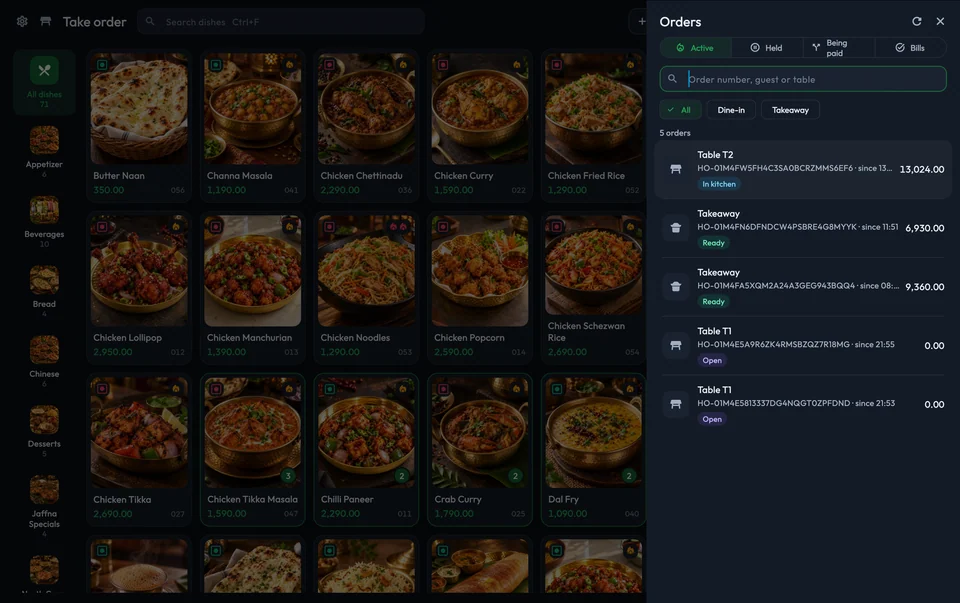
Open Orders and use the available search, order-type or status filters. The counter can show Active, Held, Being paid and Bills; other applications can group orders differently. Check the order’s identity and latest details rather than relying only on a coloured status chip.
Settle the bill
Use the offered billing action, such as Finalize & pay, or Collect balance for an existing invoice. Select the correct customer when requested and review the final quoted amount and existing payments. Follow restaurant bill and payment guidance, including guest shares where offered.
Printing or sharing a bill is not collecting payment. Wait for a confirmed invoice/payment result before describing the order as paid.
Changes, cancellation and recovery
If another operator changes an order, refresh and review the latest state and quote before submitting again. After a timeout, check the existing order before retrying a save, kitchen action or payment; the first request may already have succeeded.
Use Cancel the order only when available and appropriate. Enter the requested reason and check whether approval is required. A pending approval is not a completed cancellation or refund. Cancellation can create kitchen cancellation tickets, so communicate the final result to the kitchen and cashier instead of simply leaving the screen.
Room-linked orders are a separate, settings-dependent workflow. If New room order is offered, use an existing eligible stay rather than treating it as a new hotel booking. Where available, Charge to room posts the charge to the stay’s folio; it is not cash received at the counter.
For the complete service sequence, see restaurant POS workflow and Distribook Restaurant.